Evaluations
An evaluation tells you how often your agent gets each output field right. You pick runs, choose the fields to score and confirm the right values once. The platform then reports the accuracy per field, lists every error and compares config versions. If you can say what the right invoice number is, you can build one.
Ground truth belongs to the input
The right answer for an invoice doesn't change when you change your prompt. So the platform stores the values you confirm, the ground truth, per input: the input and attachments you passed to start(). Every run on that input, from any config version, is scored against the same ground truth.
That's what makes versions comparable: confirm the answers once, then run each new version on the same inputs. Measuring well helps you pick those inputs.
Create an evaluation
Under Evaluations, start a new evaluation. The wizard asks for:
-
A name and description.
-
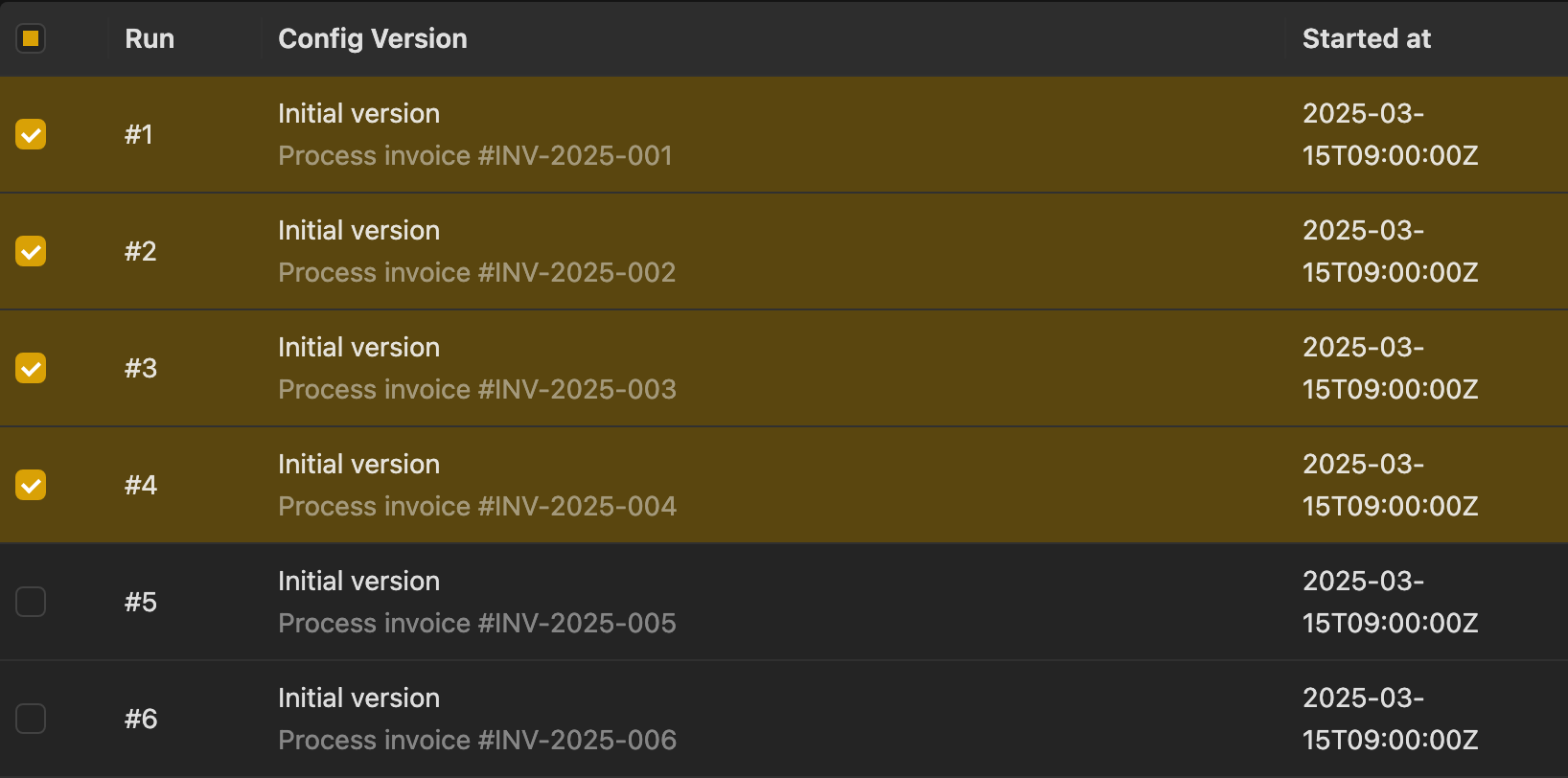
The runs to evaluate. Filter by date, tag, config version or run id, and select runs one by one or all at once. Their inputs make up the evaluation.
-
The fields to score, as JSON paths into your output, like
$.invoiceNumberor$.items[*].sku. The platform suggests paths from your output type. Each field gets a type:- Categorical for a fixed set of values, like a country code. These fields also get a confusion matrix.
- Numeric for numbers, like a total.
- Text for everything else.
A field can also get a value normalizer, so formatting differences like
12.500 kmand12500don't count as errors.
You can change the runs and fields later.
Lists
A field inside a list, like $.items[*].sku, is scored per item. The platform first pairs each expected item with the output item that matches it best, so item order doesn't matter and a missing item counts as one error, not as a shifted list.
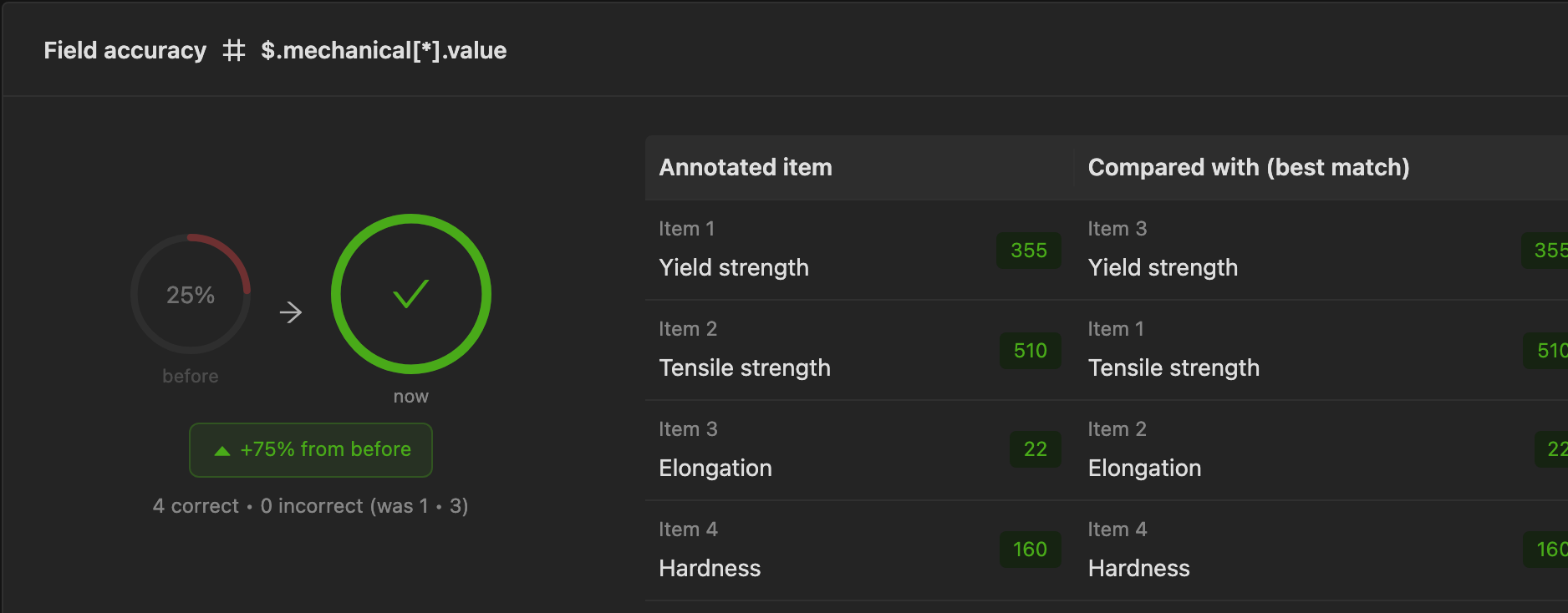
When items look alike and get paired wrongly, give the list a key: the fields that identify an item, like sku for $.items[*]. Items with the same key are paired first. Output items without a match count as extra, so a made-up invoice line shows up as an error.
Annotate the runs
The Annotations tab walks you through the inputs. For each one you see the input next to the value the agent extracted for every field. Mark each value as correct or incorrect, and enter the right value when it's wrong.
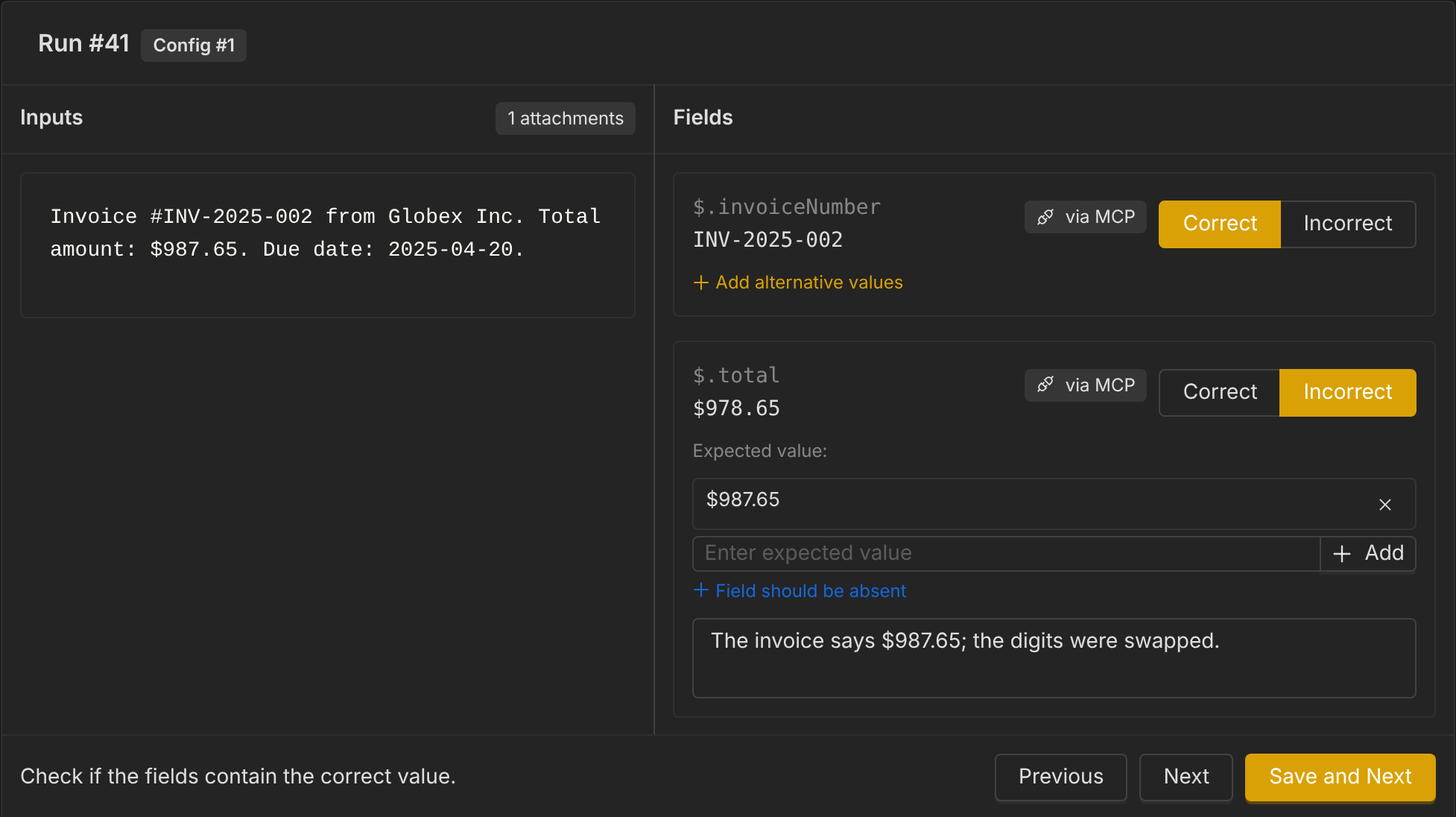
- When more than one answer is right, enter several acceptable values. A match with any of them counts as correct, for example when two codes are both valid.
- When the field should be empty, mark it as expected to be absent, like a purchase order number on an invoice that doesn't have one.
- To explain a choice, add a comment for the other annotators.
Progress shows how many inputs are fully annotated and takes you to the next one. Several people can annotate the same evaluation, and every acceptable value anyone enters counts. If you already know the right answers, send them from your code instead.
Read the results
The Evaluation Result tab shows, for the config version you choose:
- the accuracy per field: how often the extracted value matched the ground truth;
- every error, with the extracted value next to the expected one;
- a confusion matrix for categorical fields, so you see which values get mixed up.
Open a field to see the inputs it went wrong on, and from there the run itself: its input, tool calls and response. The accuracy shows which field to look at, and the run shows what to change.
Compare config versions
Pick another version to compare against, and every field shows whether it improved or regressed, and by how much. Each version is scored on its own runs for the evaluation's inputs, so you don't add new runs to the evaluation yourself.
You see whether the new prompt fixed the field you targeted, whether it broke another one, and whether the cheaper model keeps up. When a field stays wrong and you're not sure why, start the fix assistant.